Why this is needed?
Following the recent update to Engage Health's EMIS API Key, you may need to disable and re-enable the API within the EMAS manager section of EMIS Web, this will enable the newly added calls and allow you to access the full range of features offered by Engage Health Products.
Also for our Engage Consult customers, you will need to disable the older "Encompass" API and enable the new "Engage Suite" API.
(Note in the screenshots contained in this guide, the API will be labelled "Engage" this is how it shows on our in house test instance of EMIS and won't reflect what you will see in your live version"
Accessing EMAS Manager
The EMAS manager page is only available to EMIS Web users with the System Administrator role in EMIS Web.
It can be found in the main EMIS menu under "System Tools"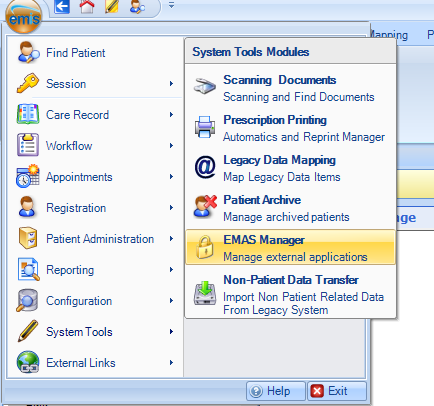
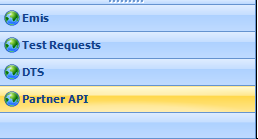
Open the EMAS manager page, and then from the menu at the bottom of the page, select "Partner API"
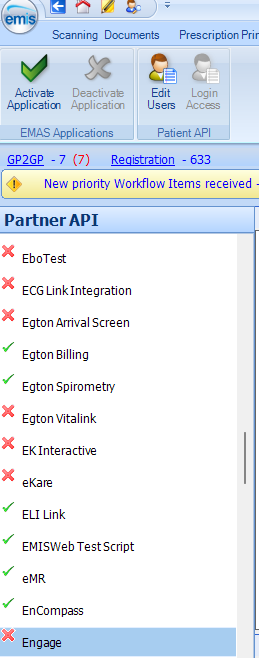
This will then display the full list of available API's, you can find Engage Suite in the list by clicking on any item, and pressing E on your keyboard to jump to those entries starting with E.
Disabling API's
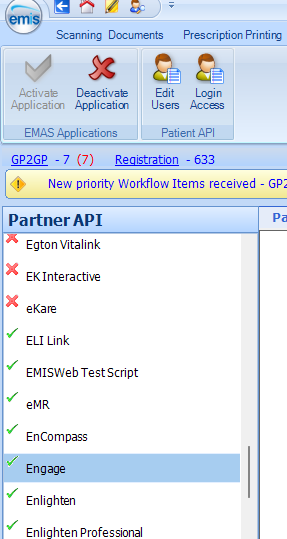
To disable an API, you just need to select it, and click the "Deactivate Application" button at the top of the page.
For Engage Consult, disable the "Encompass" API
For Engage Arrive disable "Engage Suite"
Enabling / Re-Enabling the API
You will then be able to re-enable the API, for Engage Arrive, or Enable for the first time for Engage Consult, or new unified API key, "Engage Suite" just find it in the list, click to select it, and then click "Activate Application" at the top of the page.
Activating Users Accounts To Access The API
For Engage Consult customers, you will have 1 more step to complete, you'll need to activate you users to allow them to integrate their Engage Desktop Clients with EMIS via the new API key.
Select the API from the list, and then just click "Edit Users" you will then need to tick those users who use Engage Consult, and Enter a password for them, this doesn't need to be their offline login password and can be anything as it's only used for the integration.
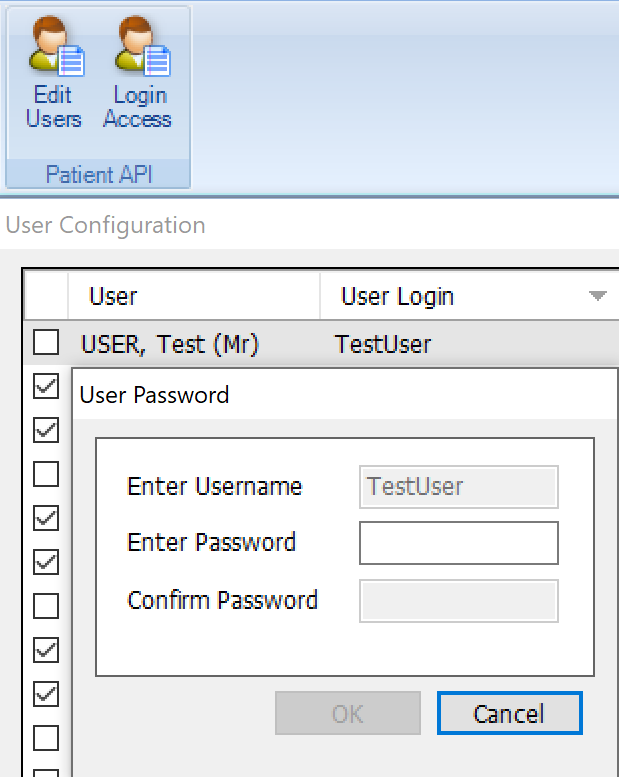
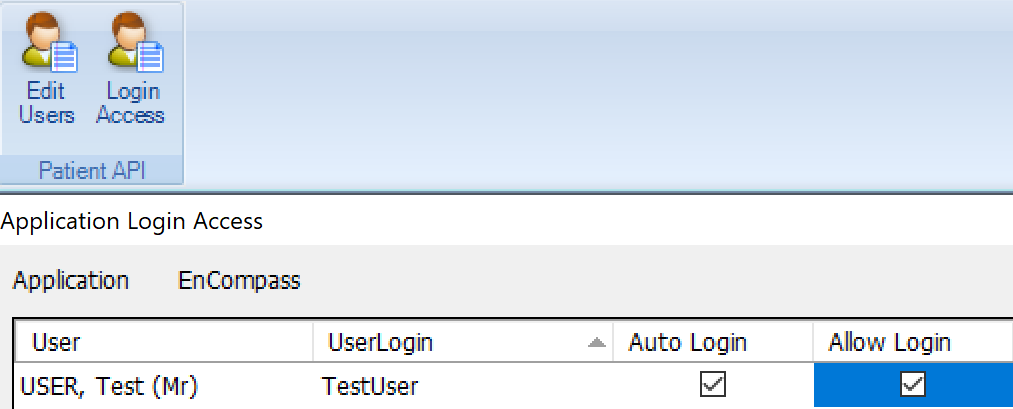
Finally you'll need to click "Login Access" and tick both boxes next to each staff member who uses the Engage Client.